 SMF Brace Layout Generator (Beta)
The SMF Brace Layout Generator helps you design and visualize guitar bracing layouts for both the top and back of acoustic guitars. You can create custom brace layouts, export them as SVG files, and save/load layouts for different guitar designs.
This tool is designed to allow SMF customers to create their own custom bracing layouts and then have a custom SMF kit manufactured using the saved layout. While that is the main purpose, luthiers may find this tool useful more generally to experiment with bracing designs in a simplified browser based tool.
Start by importing a guitar outline SVG file using the "Browse" button, or select a pre-configured SMF Reference design from the dropdown menu. The outline is used for both top and back views.
If you don't currently have a instrument outline to use check out the "G" Thang from Liutaio Mottola.
Once you have an outline shape loaded choose to load an existing layout of a design you already created or start a new design.
The tool supports multiple bracing styles. Seleting a bracing style will populate the control panel with braces typical of the selected style. Once the style is loaded you can add braces and other components to build the layout.
After selecting a bracing style, enter a Body Shape identifier in the Body Shape field (e.g., "Dred", "OM", "000", "00"). This label is saved with your layout and used as a template identifier when having a custom SMF kit manufactured.
Use the "Top" and "Back" buttons in the toolbar to switch between designing the top braces and back braces. Each view shows different brace options relevant to that side of the guitar.
Use the zoom controls (+/-) or your mouse wheel to zoom in and out. Click the "Fit" button to automatically fit the entire design in the viewport.
Check the box next to any brace type (e.g., X-Brace, Ladder Rungs, Tonebars, Finger Braces) to add it to your design. Each brace type has specific parameters you can adjust. You can also click the Add all button at the top of the braces panel to enable all braces in the current view at once.
When Ladder is selected as the bracing style, the braces panel shows an Add Rung button instead of pre-named brace types. Click "Add Rung" to add a horizontal ladder rung brace. Each rung can be independently positioned (Y offset) and sized (width). Add as many rungs as your design requires. Rungs are removed individually once added.
Once a brace is enabled, you can modify:
- Width: The thickness of the brace
- Position (Y Offset): Distance from the top of the guitar (see diagram below)
- Angle: Rotation angle for angled braces like X-braces
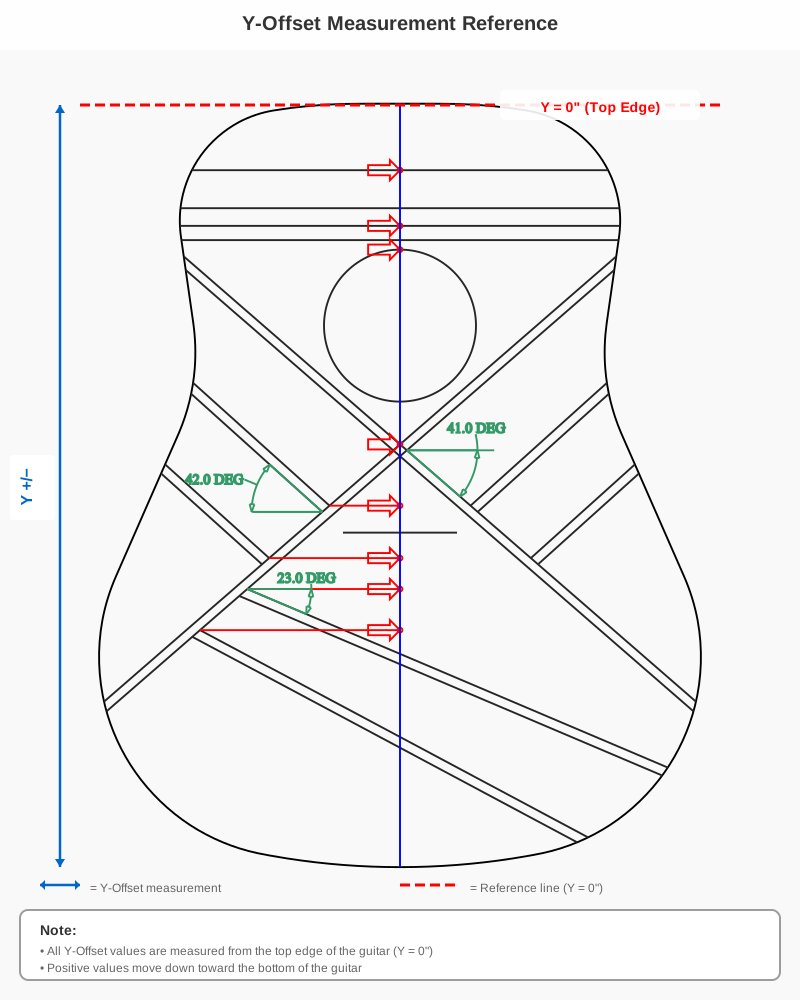
Click diagram to enlarge
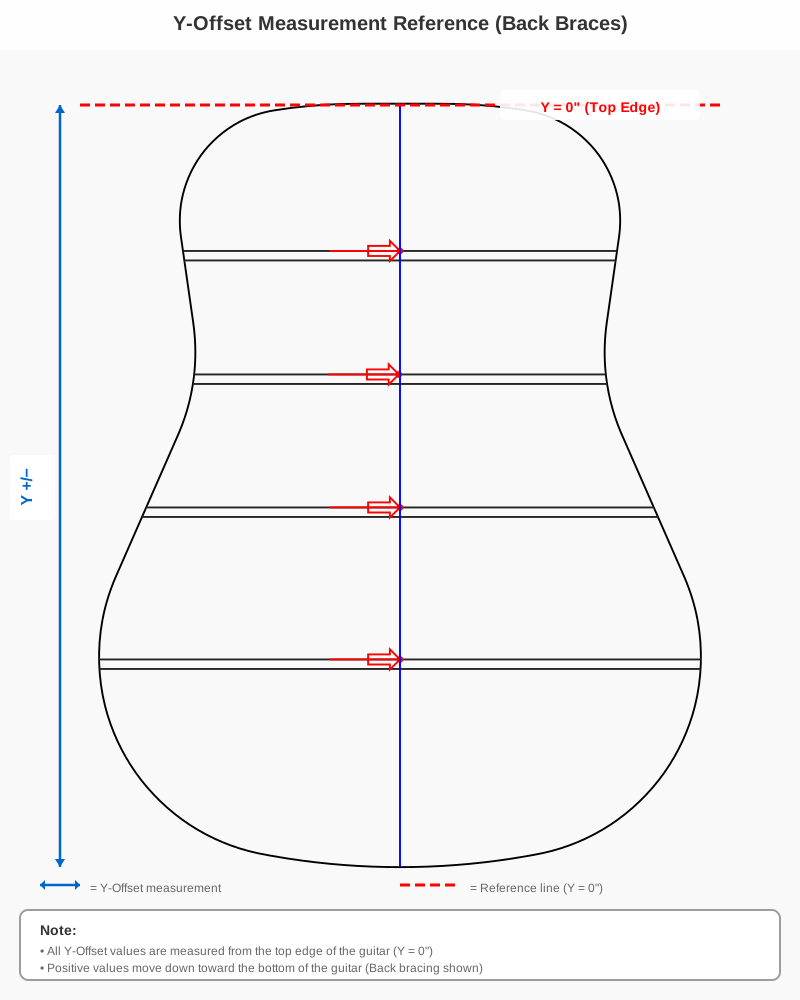
Click diagram to enlarge (Back Braces)
Use the Undo and Redo buttons in the toolbar to revert or reapply changes. The tool tracks up to 20 steps of your work history.
Add a soundhole with customizable diameter and vertical position. The soundhole is centered horizontally on the guitar body.
Add decorative rosette rings around the soundhole. The inner and outer ring diameters are adjustable. Default values are automatically calculated based on the soundhole size when enabled. The rosette is indicated by a dashed blue line.
Enable the Scale Length to show the saddle location relative to the body join fret.
- Scale Length: The playing length of the strings (typically 24.75" to 25.5")
- Body Join Fret: Which fret number is at the body join (typically 12-14)
Click "Load Scale Length" to apply these settings and see the saddle location. THe saddle is indicated by a solid red line.
Once a scale length is loaded, enable Compensation to display a compensated (angled) saddle line. When compensation is enabled, the High E and Low E saddle offset values are automatically calculated using the Elmendorp compensation formula (American Lutherie #104), based on:
- String set: .012–.053 light gauge steel strings (D'Addario EJ16 equivalent)
- Treble side (High E) action: .062" (1.6 mm) at the 12th fret
- Bass side (Low E) action: .093" (2.4 mm) at the 12th fret
- Scale length: taken from your Scale Length input above
The formula accounts for both string stretch (action-dependent) and string bending stiffness (core diameter-dependent). Values update automatically when you change the scale length.
You can override either value manually after enabling compensation if your setup differs from these defaults. For a fully custom calculation based on your specific string gauges, action measurements, or material properties, use the R.M. Mottola Compensation Calculator and enter the resulting values directly.
The Saddle Angle (degrees) is displayed once both Compensation and Pin Spacing are enabled.
Once Scale Length and Compensation are both enabled, you can enable Pin Spacing to display bridge pin location markers on the saddle line. The pin spacing value (default 2.125") sets the center-to-center distance between the outermost bridge pins (High E and Low E). Adjust the value between 2.0" and 2.5" to match your bridge.
Enabling Pin Spacing also activates the Saddle Angle display in the Compensation section, showing the exact angle of the compensated saddle in degrees.
Once Scale Length, Compensation, and Pin Spacing are all enabled, you can enable Bridge Pin Offset to fine-tune the position of the High E and Low E bridge pins independently. Each pin can be offset by up to ±0.5". This is useful when your bridge has asymmetric pin placement relative to the saddle centerline. The pin positions are shown as blue circles on the drawing.
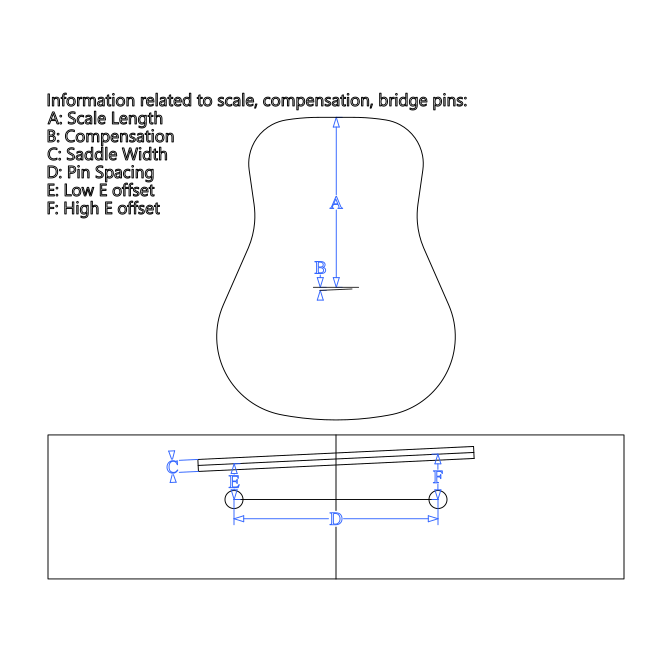
Click diagram to enlarge (Bridge Details)
Once scale length is loaded, you can enable fret position markers. Specify how many frets to display. Fret positions are calculated using standard equal temperament tuning math. The frets added start at the body join fret (specified in the Scale Length component) + 1. For example, if the body join fret is set to 14, the frets drawn are 15, 16, 17, etc.... Frets are indicated by an orange line.
Enable the bridge feature to see a simple bridge rectangle added to the layout. A scale length must be added before the bridge is enabled. The bridge is positioned at a Y Offset of .125" less than the saddle location. The width and height of the bridge are adjustable. The width of the bridge wings can be set. The wings are indicated by a dashed red line.
Example shown with belly bridge:
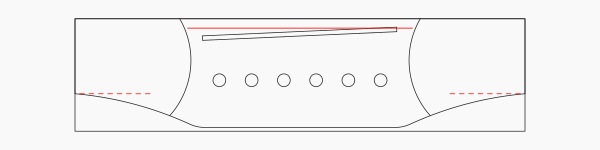
Click diagram to enlarge (Bridge)
Add a bridge plate or bridge patch to the drawing. X-Brace designs will use the bridge plate where Ladder Brace designs will use the bridge patch. The primary difference is that the bridge plate can extend down and intersect with the tonebars where the bridge patch is always a rectangle. The default Y offset is the saddle location -.25". You can expand the width and set its Y offset as desired. Note: When using your SMF Brace Layout Generator design to have a custom Micro Factory kit manufactured, the bridge plate / bridge patch size and shape specified here will also be used to make your template. The bridge plate / bridge patch is indicated by green lines.
Add a reference neck & tail block to see how they interact with the braces. Blocks are indicated by brown rectangles.
The back view lets you design up to 4 horizontal back braces. Each brace can be positioned independently with custom width and Y-position values.
Pre-configured guitar designs are available in the "Select SMF Reference" dropdown. Loading a reference will:
- Import the guitar outline
- Apply pre-set brace configurations
- Set recommended dimensions and positions
You can modify any reference after loading it to create your own custom design and save the layout for use later.
Click the "Save Layout" button to download your current brace layout as a JSON configuration file. This file includes all brace settings, positions, and dimensions. When having a custom Micro Factory kit manufactured you will send this file to SMF and we will use it to make your custom kit.
Click the "Load" button to import a previously saved configuration file. This will restore all brace settings from that file.
Use the "Export" button to save the current view (Top or Back) as an SVG file. SVG files can be opened in vector graphics software or sent to CNC machines for fabrication, printed, etc...
Access Settings from the top navigation to:
- Units: Switch between Metric (mm) and Imperial (inches)
- Precision: Set decimal place precision for measurements
- Reset: Restore all settings to default values
- Always import an outline before adding braces
- Use the zoom controls to see fine details
- Save your work frequently to avoid losing custom designs
- Start with an SMF Reference and modify it to learn the tool
- Use the Undo button freely - you have 20 steps of history
- Export SVG files when your design is complete
- Metric is not currently supported but is coming soon.